 PickleballBu.com
Scoring, rotations, practice plans
Scores, every shot, and fair rotations.
All your pickleball in one app.
Pickleball scoring, fair rotations for your sessions and practice planning, in one app. Tap the side that won each rally and the score call (0-0-2) and the serving order follow the official rules. Turn on Analysis mode to record where every shot was played, then watch the match back as an animated replay and see its stats. At a session, just pick who came and get a rotation where everyone plays as often as everyone else. Sign in with Google or Apple to plan practice with your members and share match records with them.
- Price
- Free, no ads
- Runs on
- Apps on the App Store and Google Play, plus a web version for the browser. Scoring and rotations work without signing in.
- Languages
- Japanese, English, Chinese (Simplified), Chinese (Traditional), Korean, Thai, Indonesian
Just tap the side that won the rally
Choose the format and the players, then tap whichever side wins each rally. In side-out scoring only the serving side scores, and the score call, the change of server and the end of each game are all handled for you.
- One tap per rally
Tap the panel of the side that won the rally: a point if they were serving, otherwise a change of server or a side out. Big numbers you can read from outside the court.
- The call and the serve, shown for you
The score call such as “4-2-1” (0-0-2 to start a game), who serves and from which side, and server 1 or 2, all as the official rules say.
- Mistakes are easy to fix
Use “Undo”, or delete a point from the rally log. The score and the serve are all worked out again.
- Choose the format
11, 15 or 21 points; a single game or best of 3. Side-out or rally scoring, with the two-point lead and the change of ends in the deciding game handled automatically.
- Names are optional
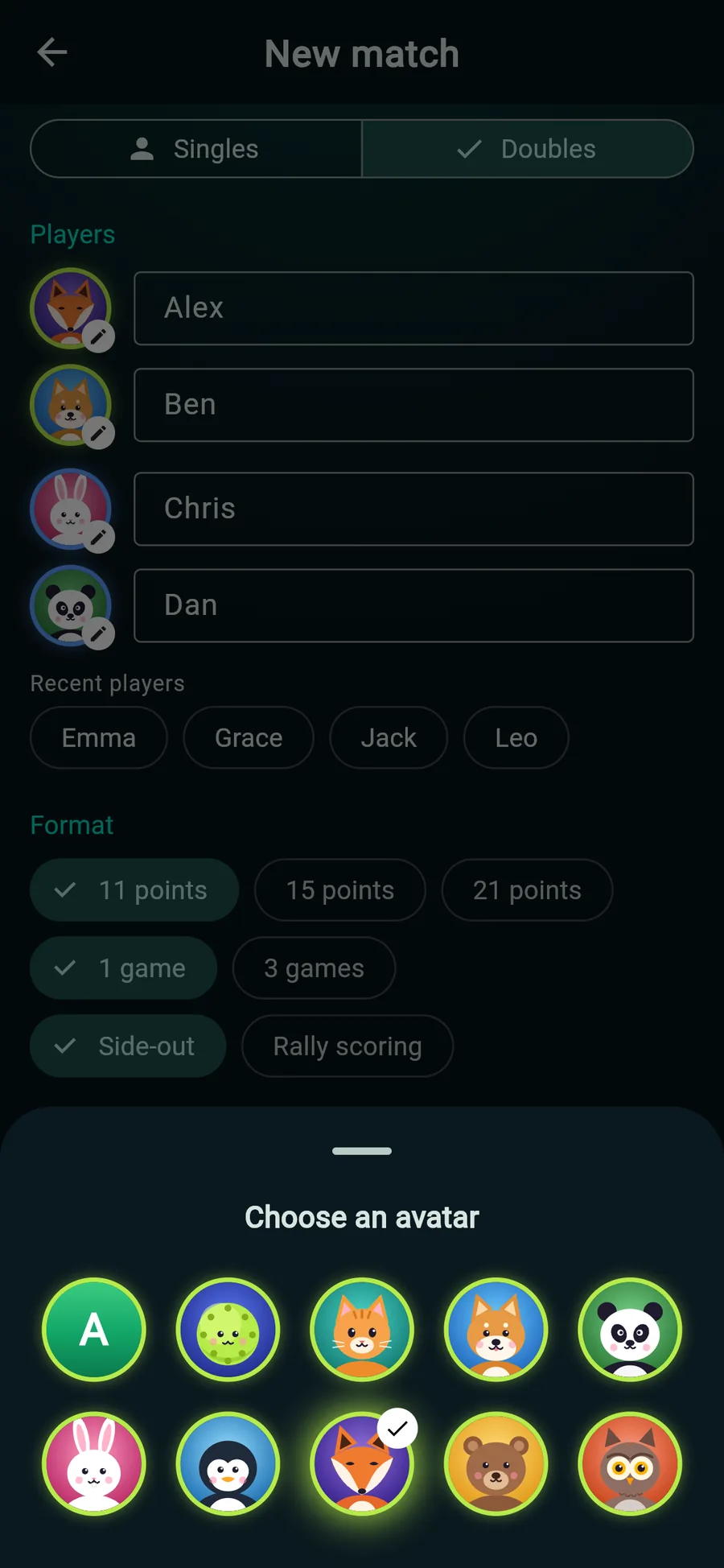
Every name is optional. Pick recent players with one tap, and their avatars come along.
- A timed rally log
Each rally is kept with its time and the score at that moment, so you can follow the match afterwards.
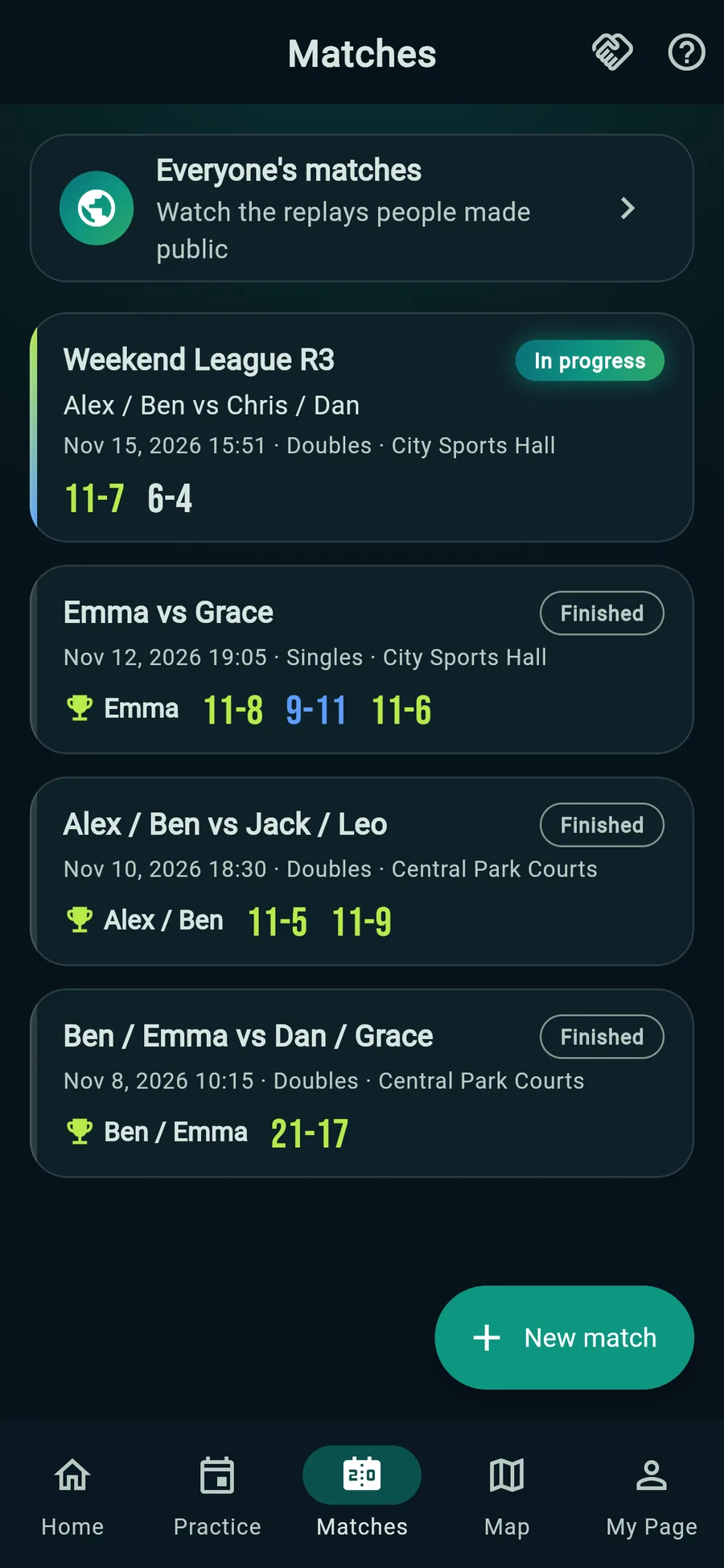
MatchesIn progress and finished 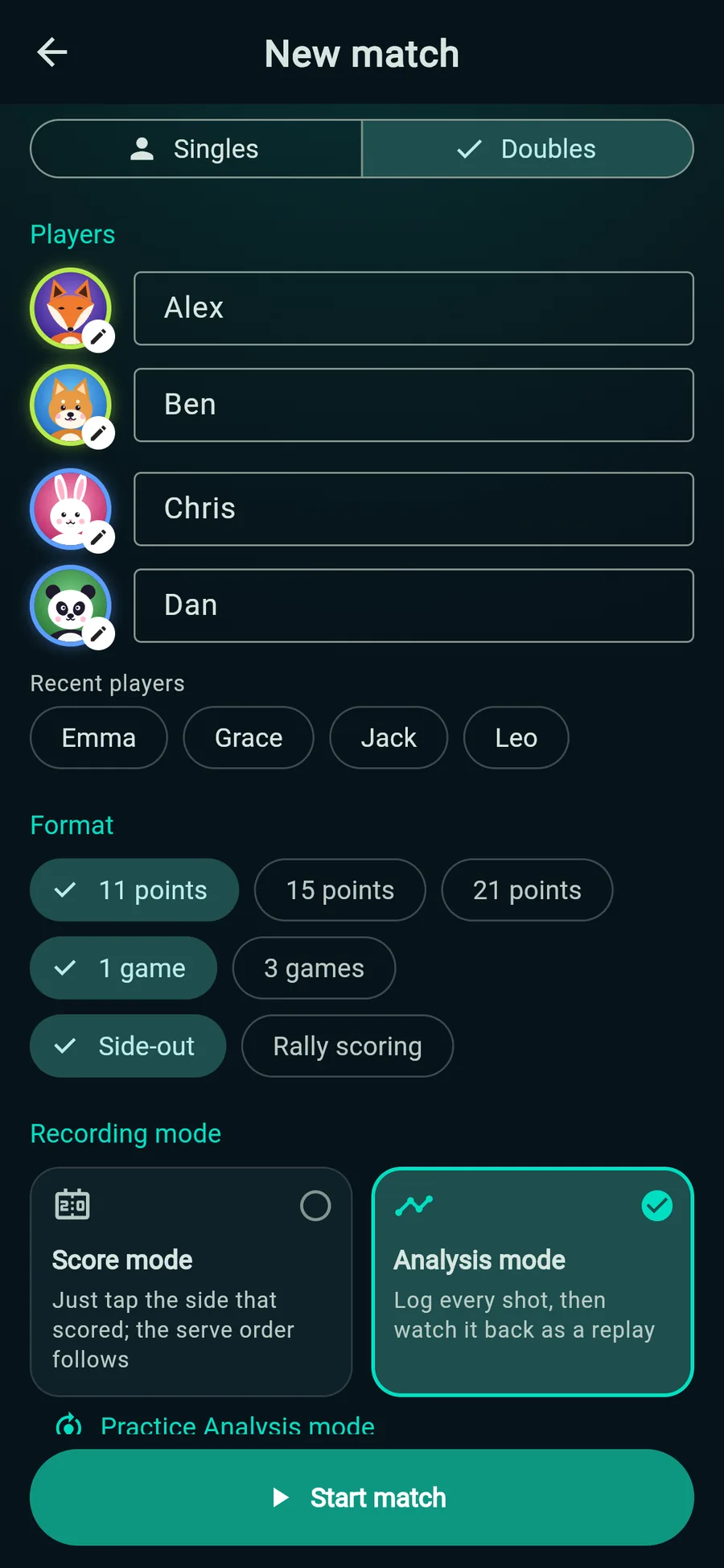
New matchRecent players in one tap ScoreThe call and the serve, automatic
Record where every shot was played
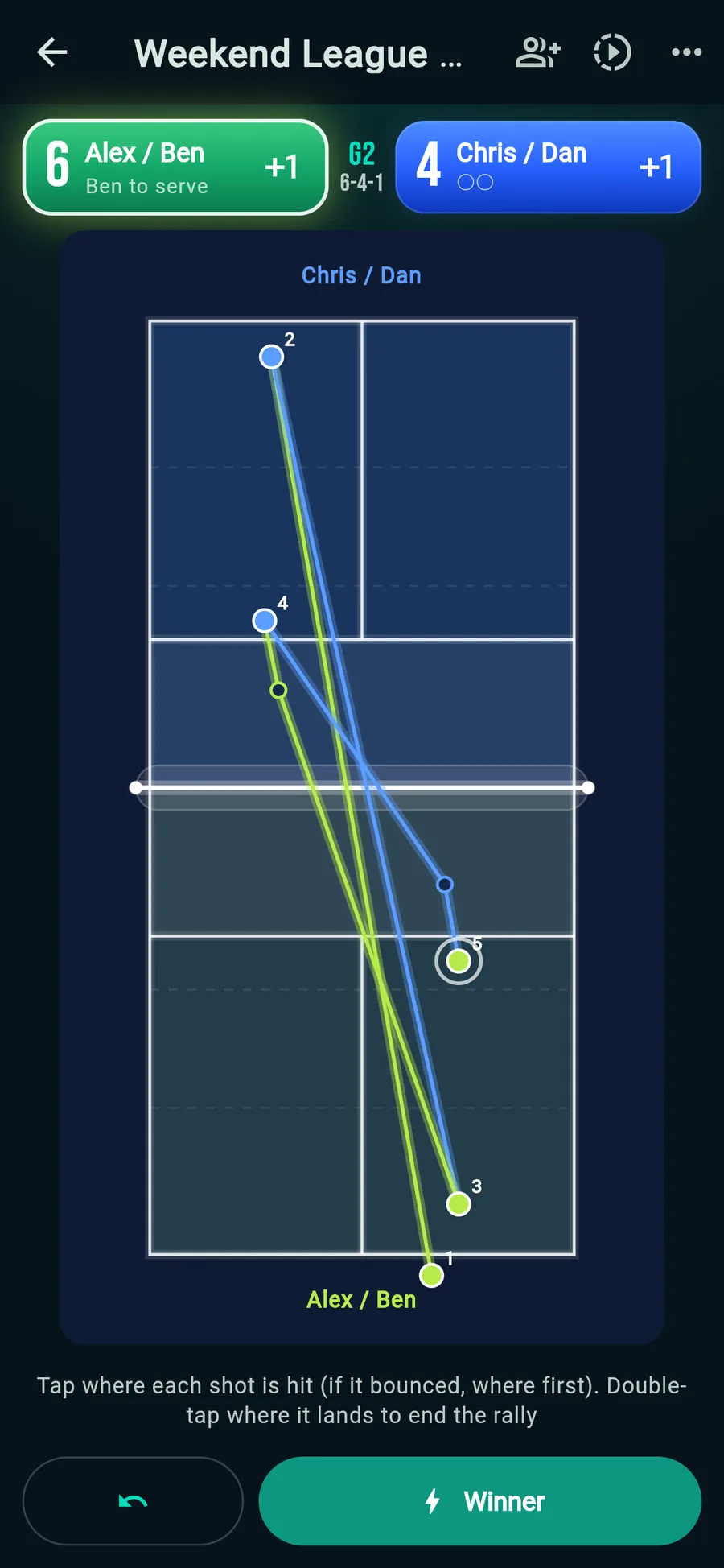
Choose Analysis mode and tap a court diagram to record where each shot was played. The serve is placed for you, and who hit it and what kind of shot it was (dink, drop, drive, lob, volley and so on) are filled in from the spot.
- Tap the courtJust tap where each shot was played, in order. The serve goes in by itself. Tap where it bounced too, and the replay bounces it there.
- Double-tap where it landsDouble-tap where the ball came down to end the rally: in or out follows from the spot, and a net is a double tap on the net band. A serve into the kitchen takes a single tap: a service fault. Double bounces and kitchen faults on a volley can be recorded too.
- Fix it afterwardsAfter the rally, switch between winner, double bounce and out in one tap, or fix each shot's player, kind and bounce with ✎. A two-finger tap takes back the last tap.
- Replay it laterRecorded rallies play back as an animated replay.
Analysis modeNumbered, so placement is clear at a glance Chosen per matchScore mode or Analysis mode, on the new match screen
Watch the match again as an animated replay
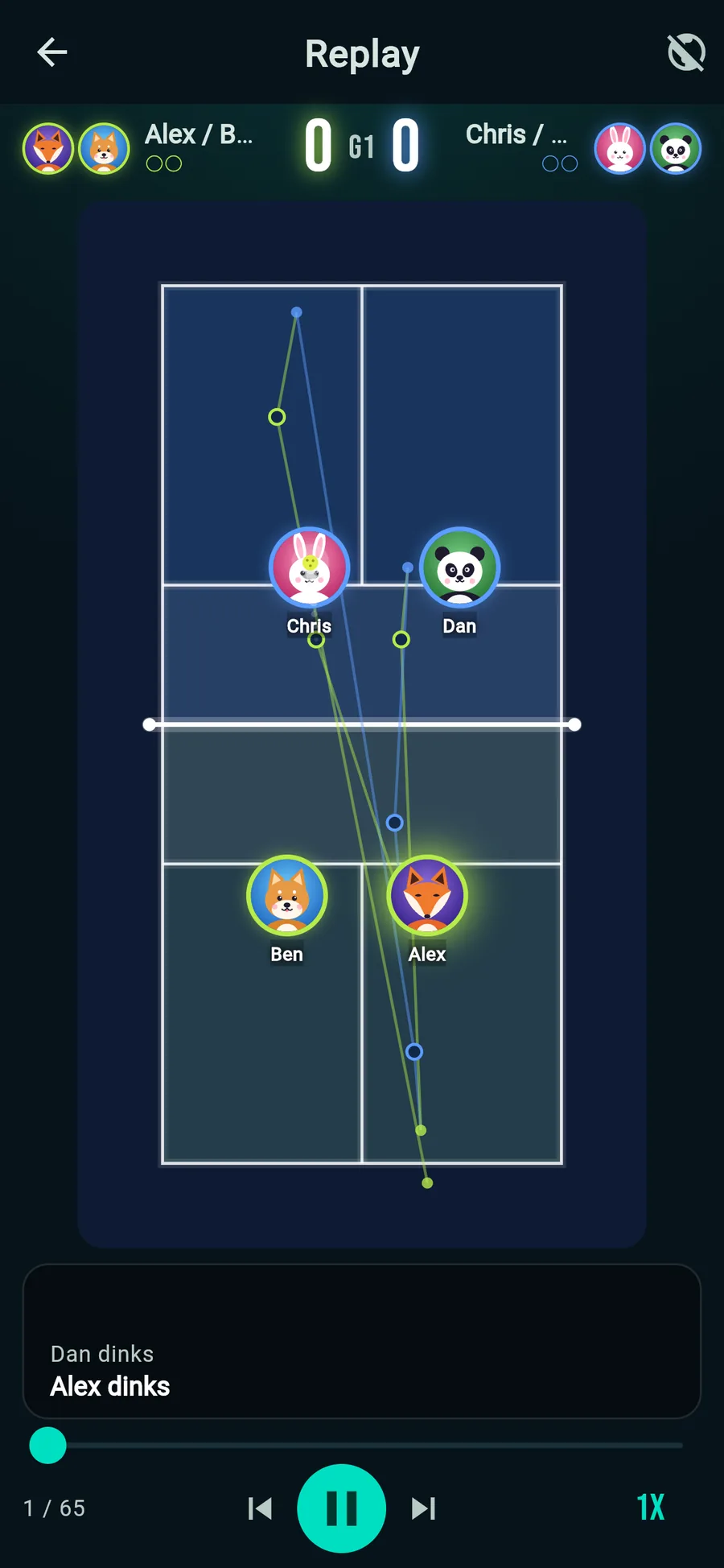
Matches recorded in Analysis mode play back on a court where the players' avatars move and the ball flies and bounces, with commentary for every rally.
- Moving avatars
Each hitter's avatar runs to where the shot was played, so doubles rotations show too.
- The ball's flight
Arcs that bounce where the ball bounced, with a trail and a shadow: dinks low, lobs high, and an effect where a winner lands.
- Commentary
The server's call (4-2-1) at the start of each rally, then “third-shot drop”, “dinks, 5 in a row”, “kitchen fault!” and more tell the rally in words, in all 7 languages.
- Make it public
Make a replay public and share it by link; the link shows a picture with the score. In “Everyone’s matches”, watch the replays others made public and send them likes.
Play, pause, skip to the previous or next rally, and change the speed. Match stats sum up the key points (comebacks, runs, third-shot drop success and more) and the score flow, and compare both sides’ winners, errors, dinks and more.
Fast doubles? Score with two phones
When rallies are too fast for one person, use two-phone scoring and make a second phone the helper. The scorer and the helper each tap only their own half of the court, and the two phones’ taps are joined by time into one rally.
- Invite a helperThe scorer taps “Invite a helper” on the match screen. A QR code and a 6-character code appear.
- Scan the QR codeThe helper scans it with the phone's camera. It opens in the browser, so nothing to install.
- Tap your own halfThe helper's screen puts their half nearest. Tap where the ball bounced and was hit on your side, and where it landed on your side.
- The scorer adds pointsPoints come from the scorer's buttons. A slow connection never shifts the score, and late taps still join their rally.
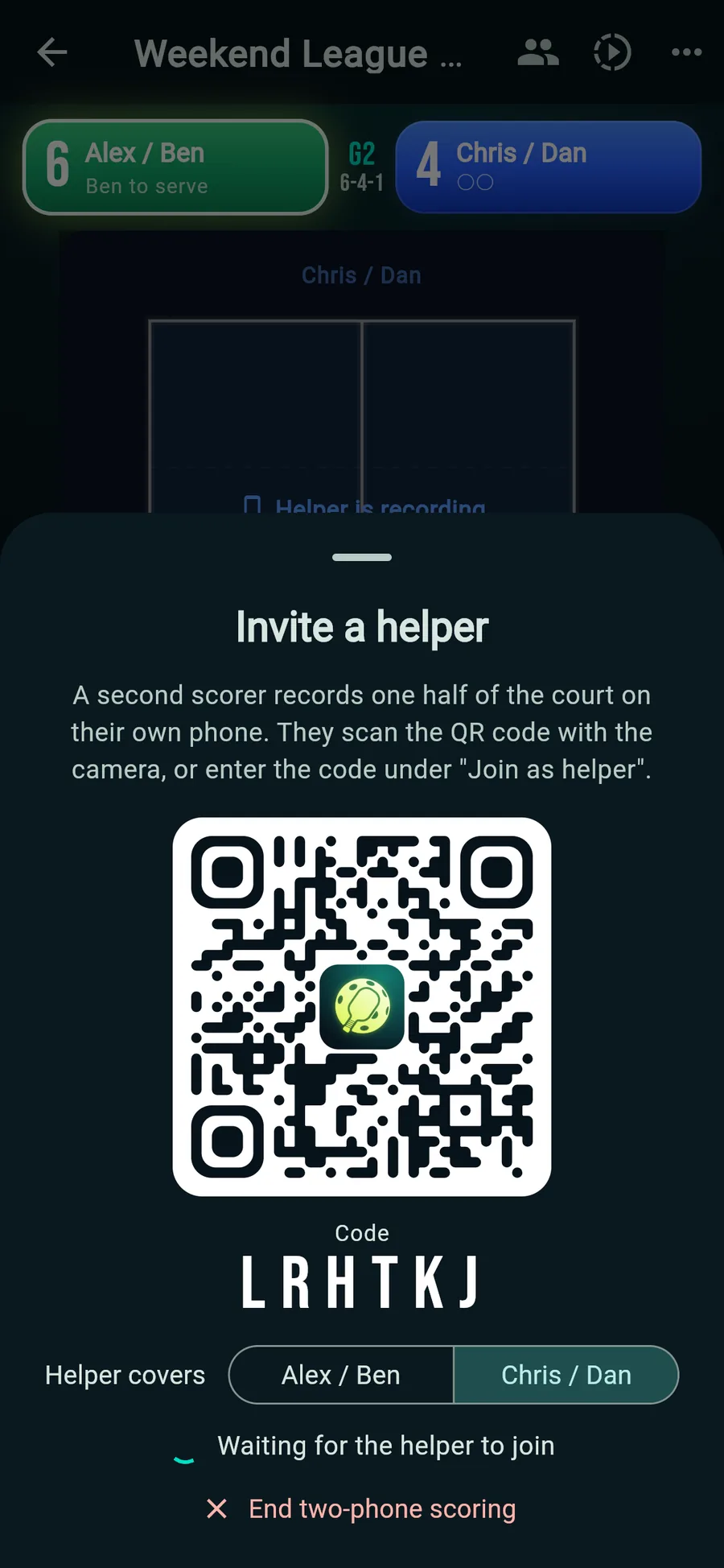
Invite a helperBy QR code or a 6-character code 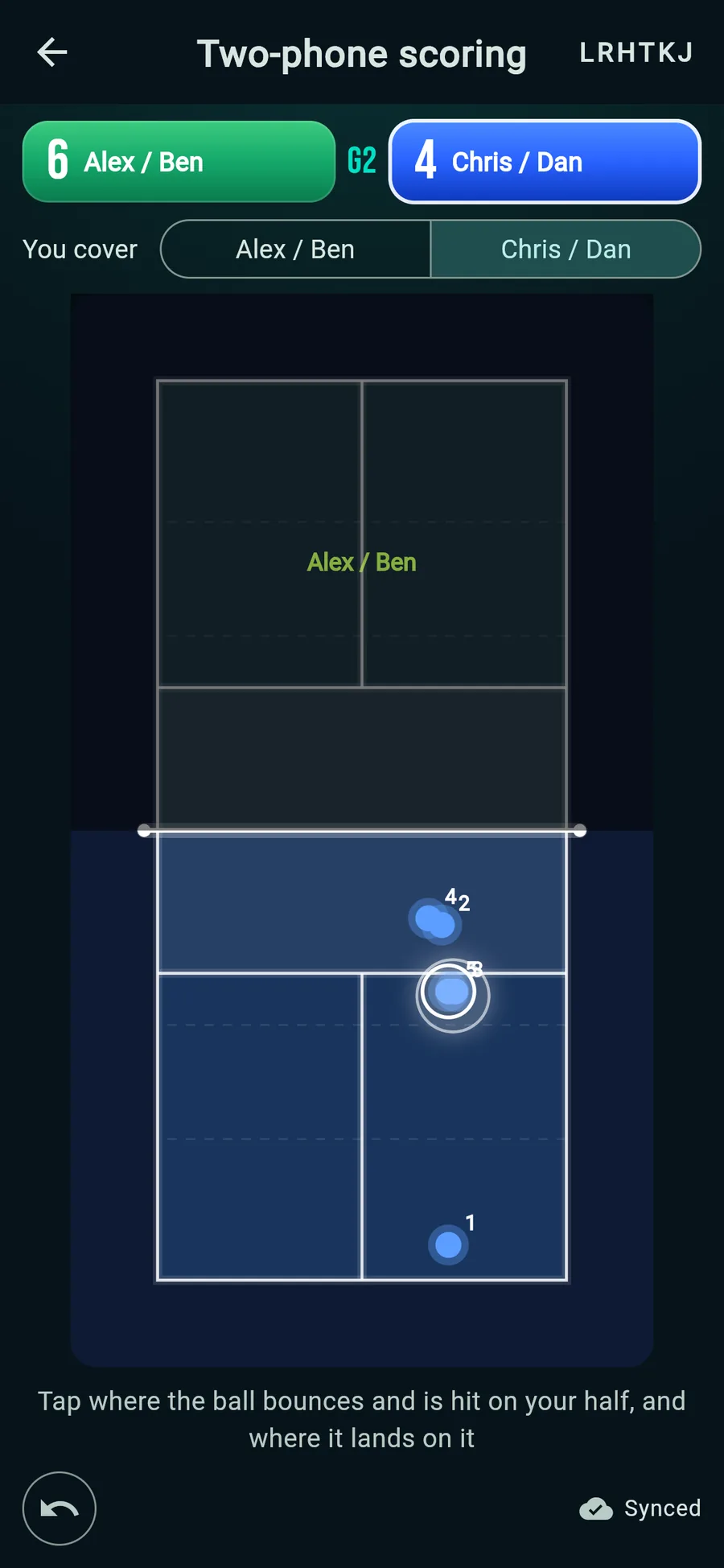
Helper's screenTheir own half nearest 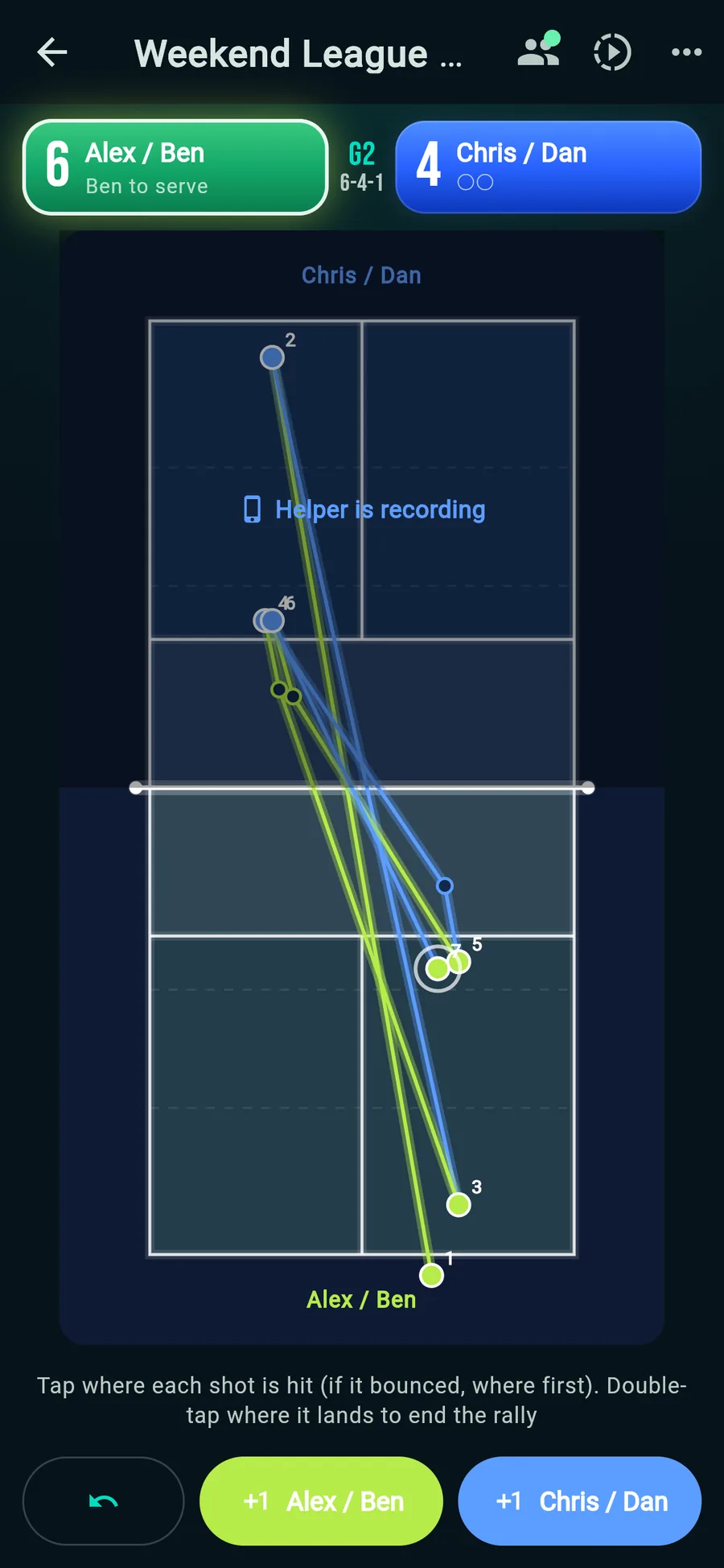
Scorer's screenTwo phones' taps, one rally
Both phones need an internet connection in two-phone scoring. The shared taps are deleted when two-phone scoring ends. Winner, out or net can be corrected until the next rally starts.
Connect with members and share your records
Sign in with Google or Apple and your matches are saved to the cloud, so they stay with you when you change phones. Connect with the people you play with through an invite link or QR code, and the matches you play together show up in both your records, along with your head-to-head.
- Saved to the cloud
Once you sign in, matches are saved to the cloud too. See the same records on a new phone or on your computer.
- Invite members
Just send an invite link or QR code. When they open it and sign in, you become each other's members.
- Head-to-head and shared records
Pick a member as a player and the match appears in their records too. See how you do against each member, and as partners.
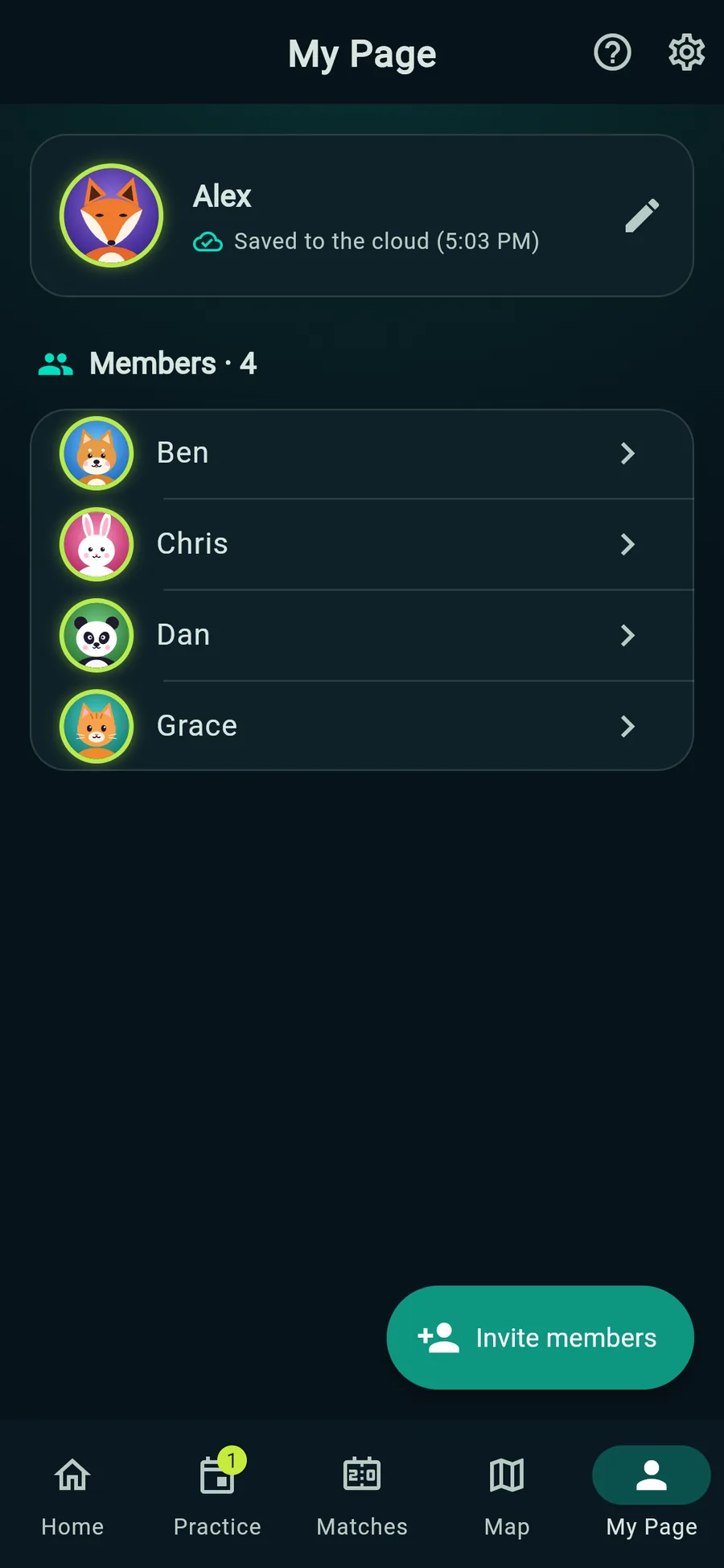
MembersEveryone you've invited, in one list 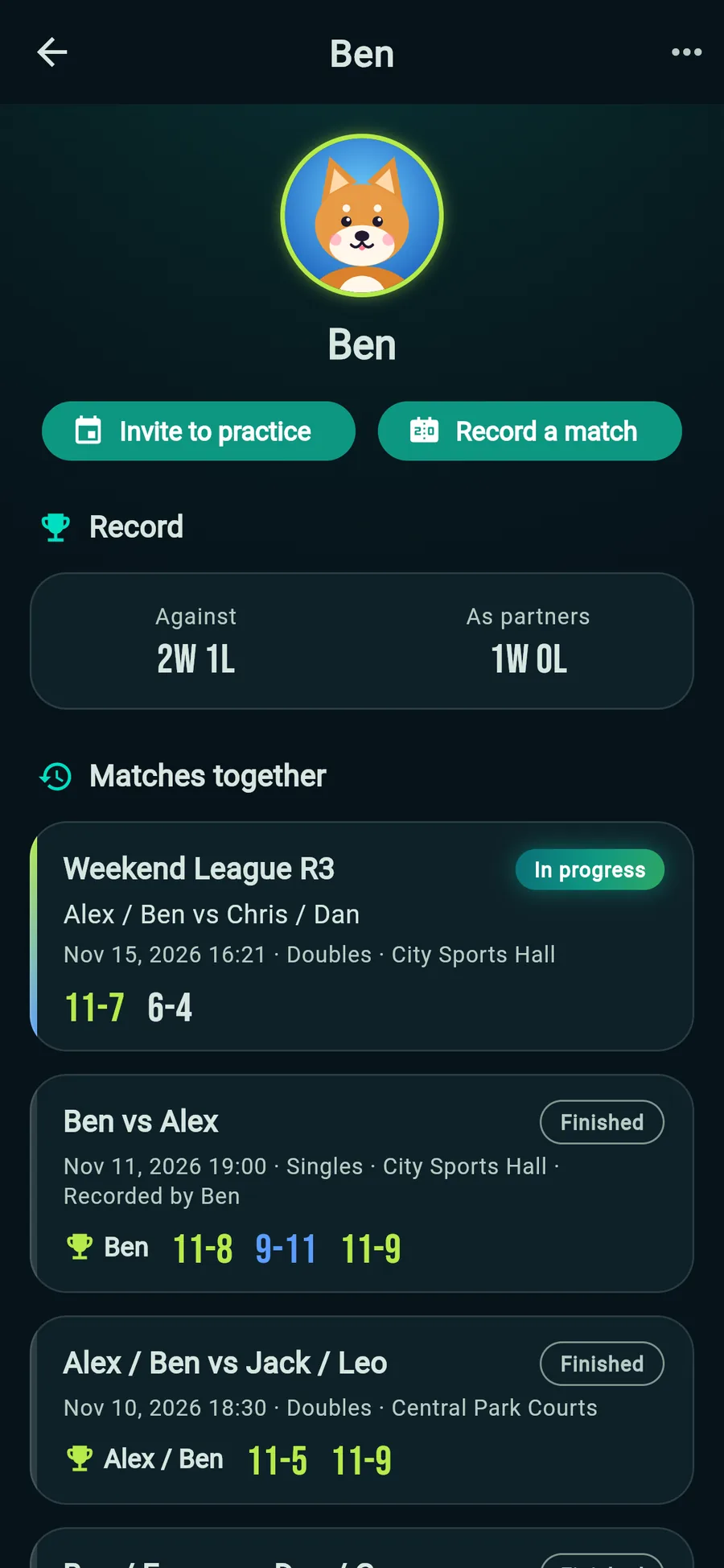
Head-to-headWins, losses and matches together
Members and practice plans need a Google or Apple sign-in. Your name and avatar are visible to other signed-in users.
Plan practice and find a place to play
Choose a time and place, invite members, and the plan goes on everyone's calendar. Members reply Going, Maybe or Can't go. Looking for somewhere to play? Check the court map.
- Plan practice
Add a title, time and place, and pick who to invite. You can also invite someone straight from their member page.
- Reply in one tap
Going, Maybe or Can't go. The plan shows at a glance who's coming.
- Add to your calendar
Add plans straight to Google Calendar or the calendar on your iPhone.
- Court map
Find pickleball courts and gyms on the map, and pick one for your plan. Read and write reviews with photos, and save favorites. If a place is missing, you can request it from the app.
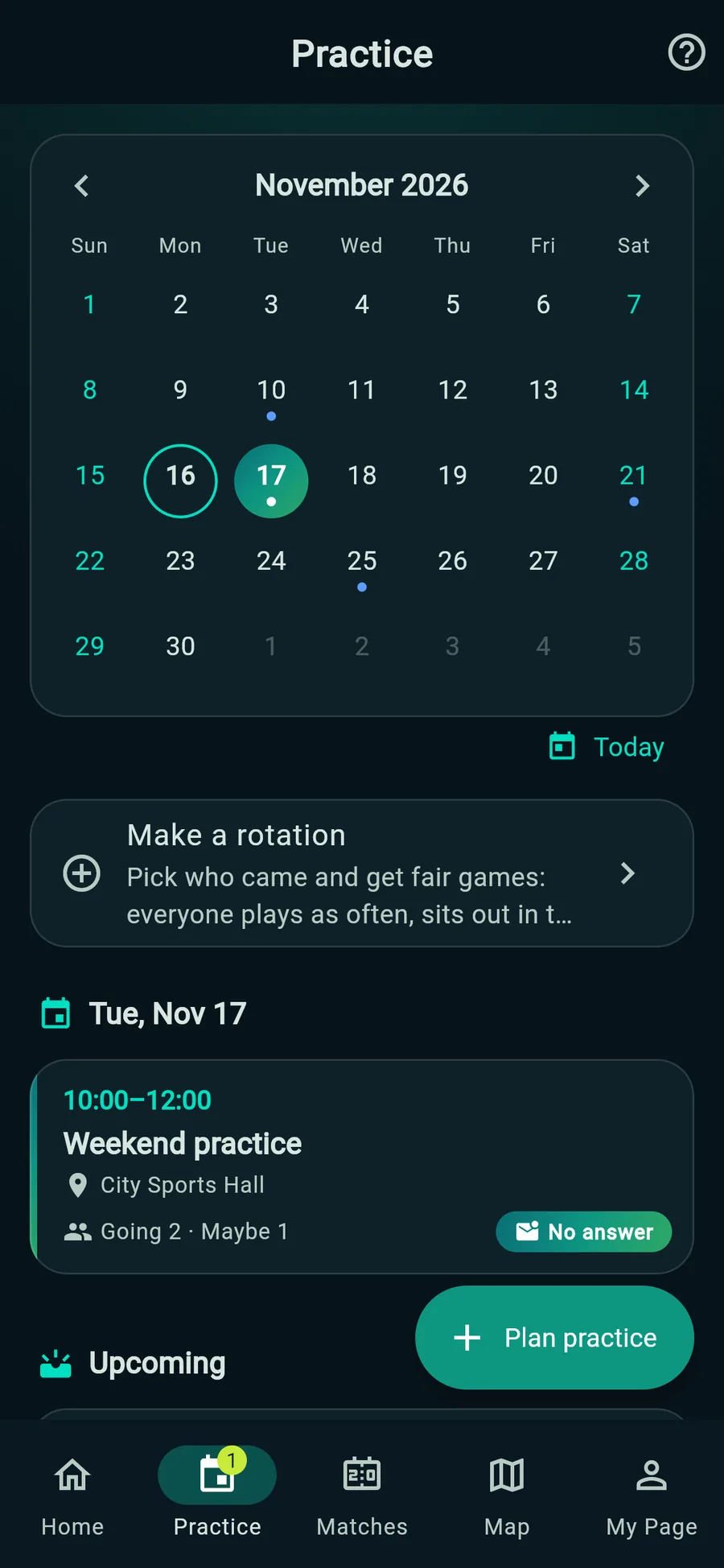
PracticeYour plans on a calendar 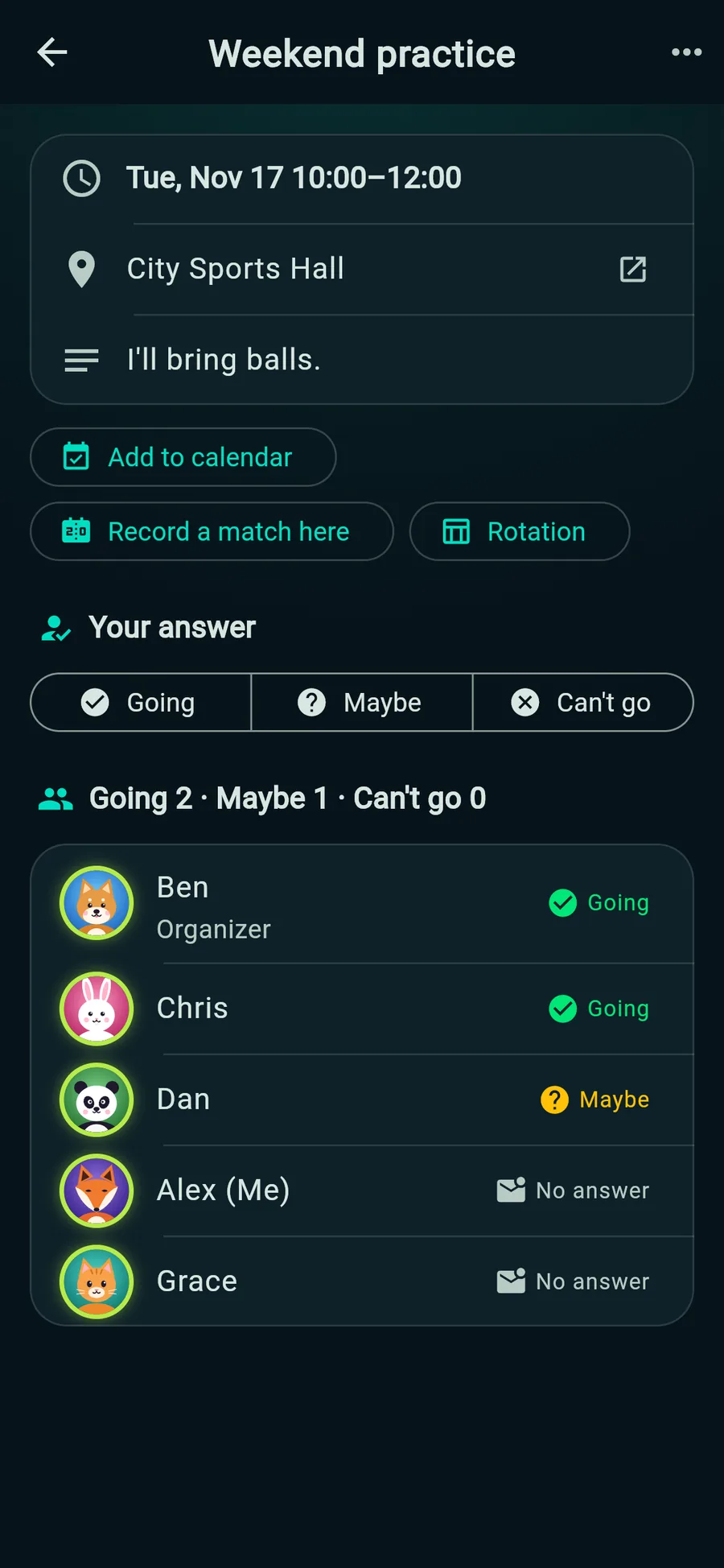
PlanSee who's coming at a glance 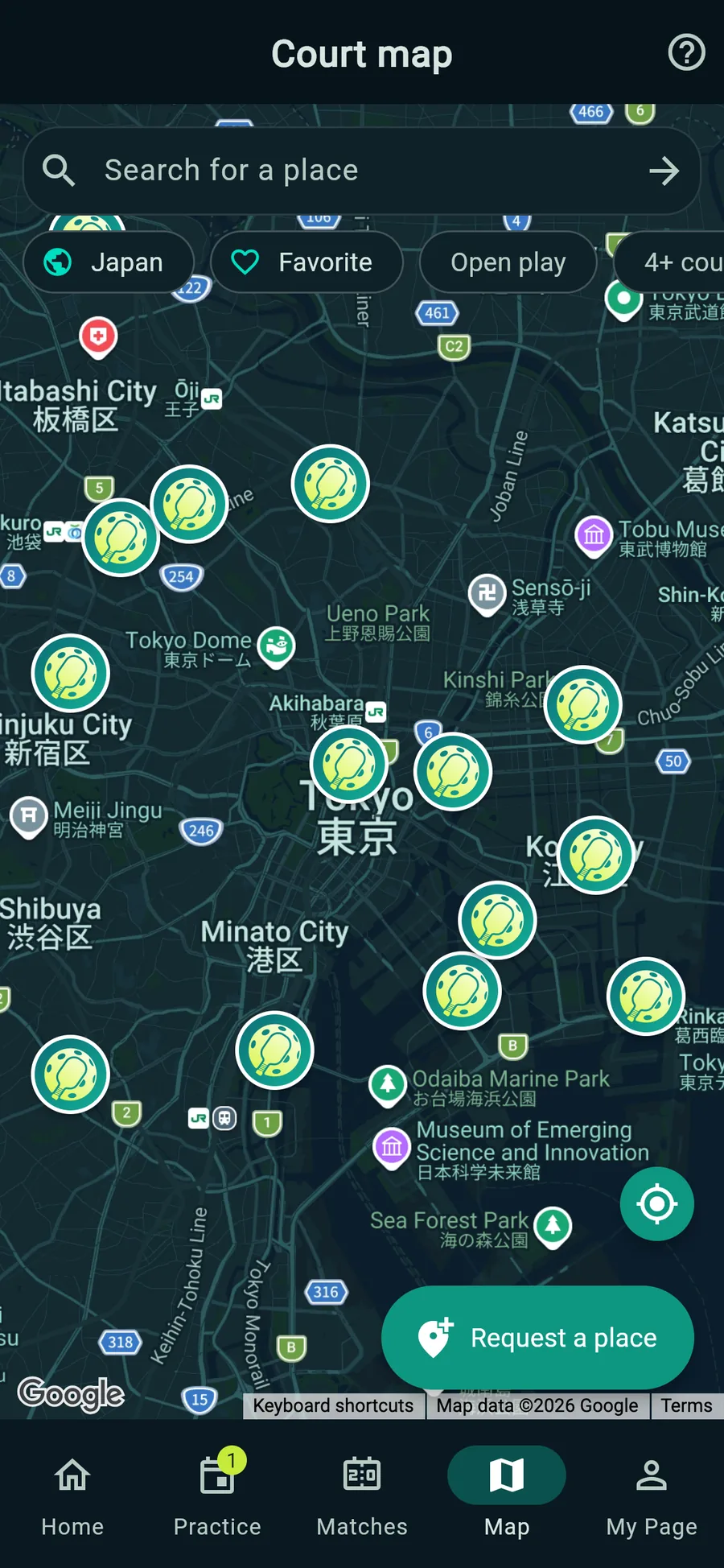
Court mapFind courts nearby 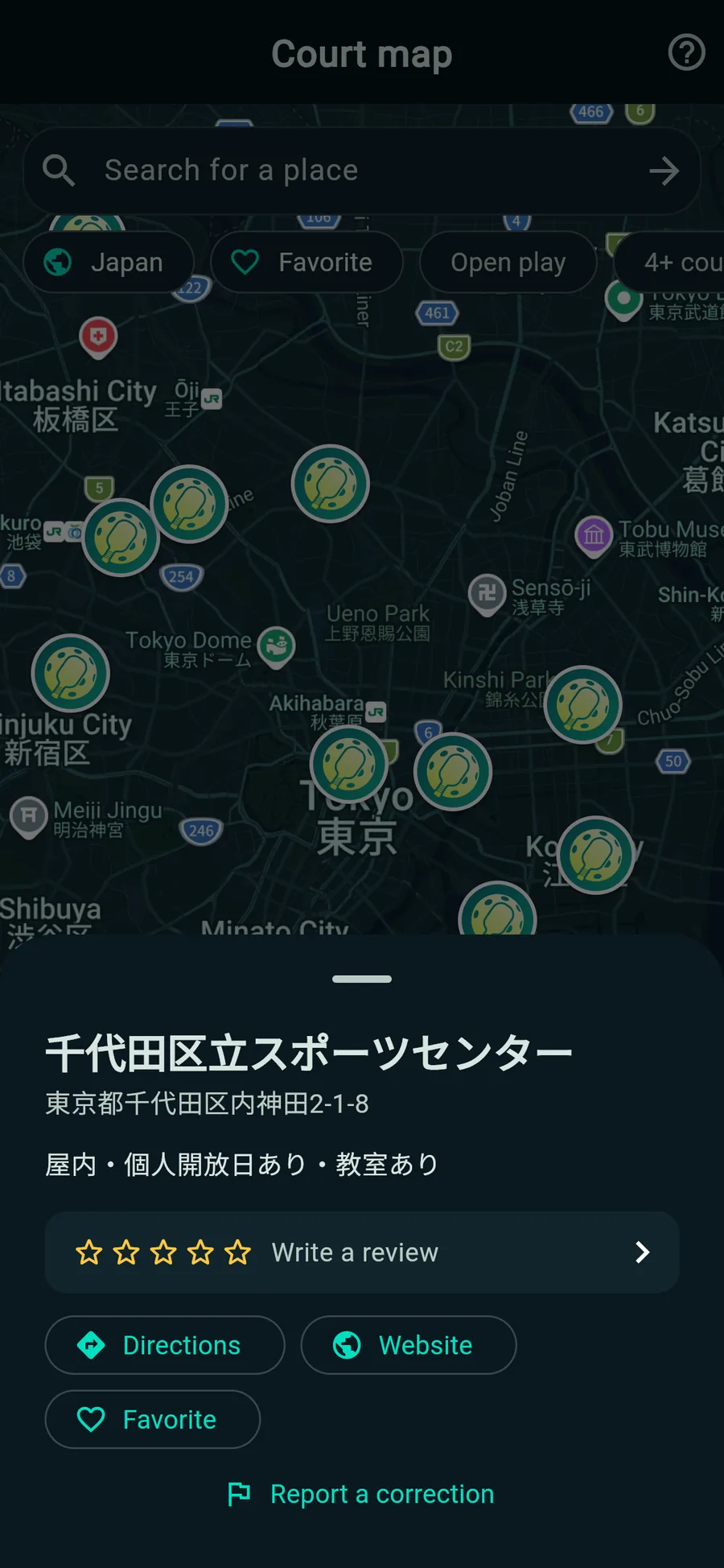
Place detailsDirections in one tap
Practice plans need you to sign in. The court map works without signing in.
Fair rotations for your sessions
Pick who came and how many courts you have, and it makes the games: everyone plays about as often, and nobody sits out or partners the same person much more than others. No sign-in needed.
- Pick who cameChoose from your members and recent players, or add names. Make it from a practice plan and everyone who said Going is already in.
- Courts and partnersFrom 1 to 8 courts. Doubles with new partners every round or fixed pairs, or singles. It shows straight away how many sit out each round.
- The games appearThe round on court and the next one, court by court, with who sits out. Someone arrives late or leaves early? The rounds from the next one are made again.
- Scores and standingsEnter scores on a number pad, or keep score on the scoreboard. Standings go by wins, then point difference, and you can share the rotation.
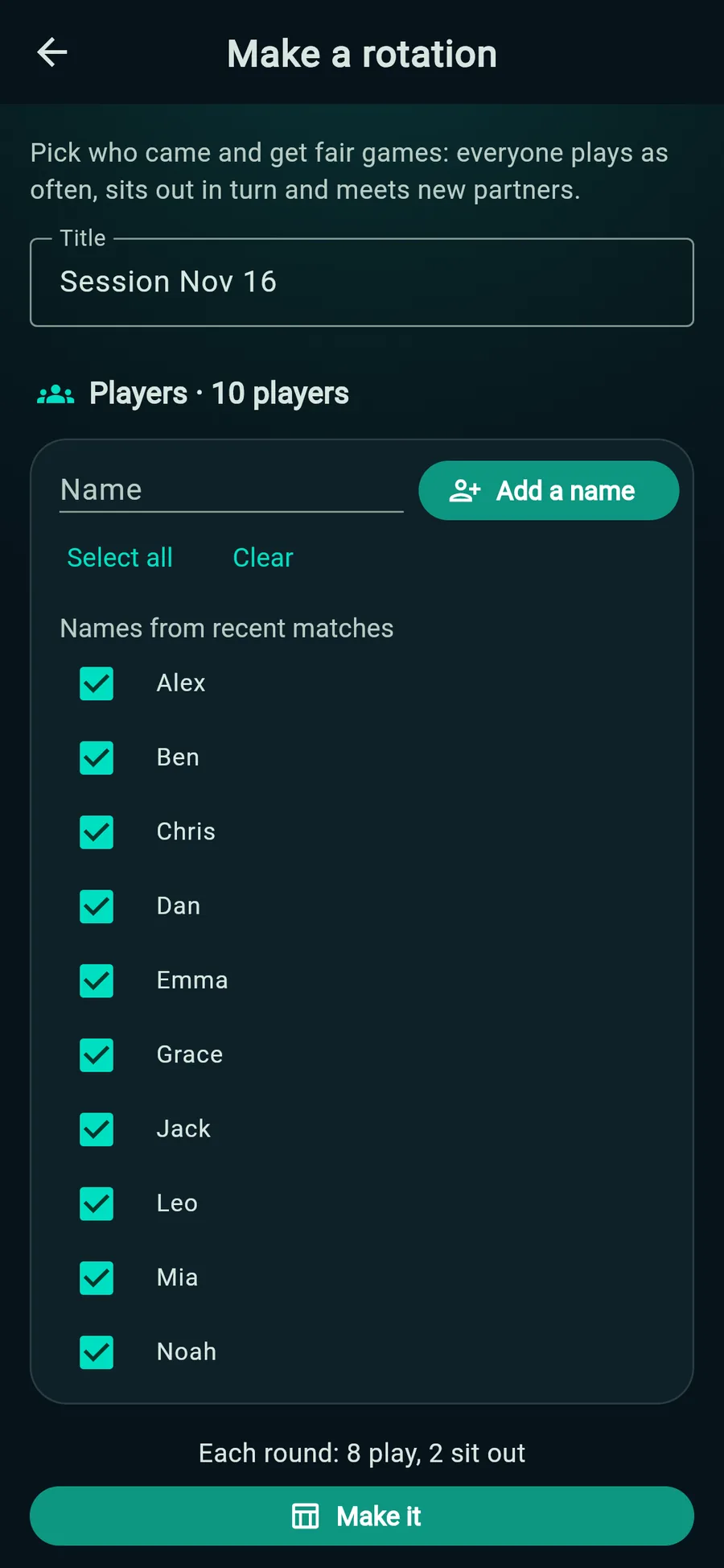
Players and courtsJust check who came 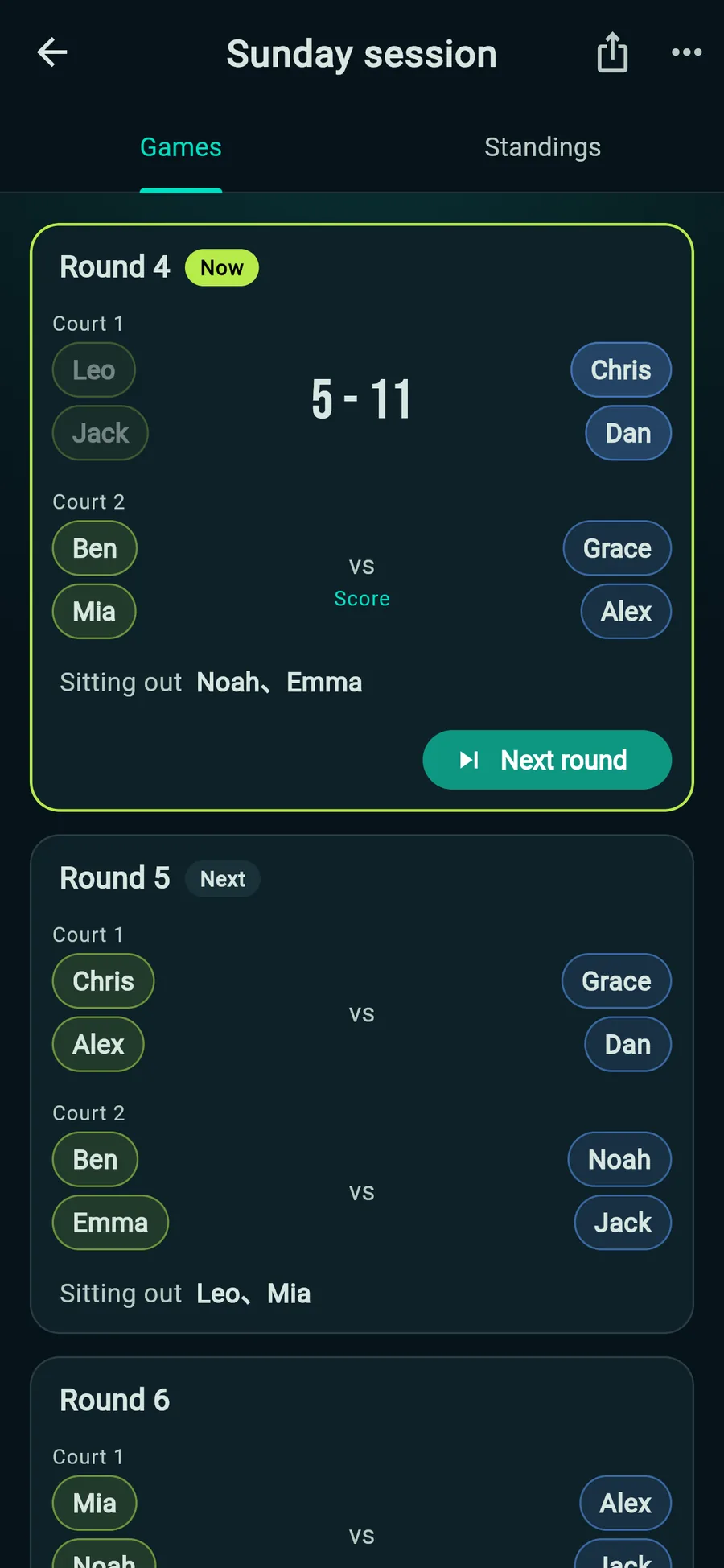
RoundsCourt by court, rests included 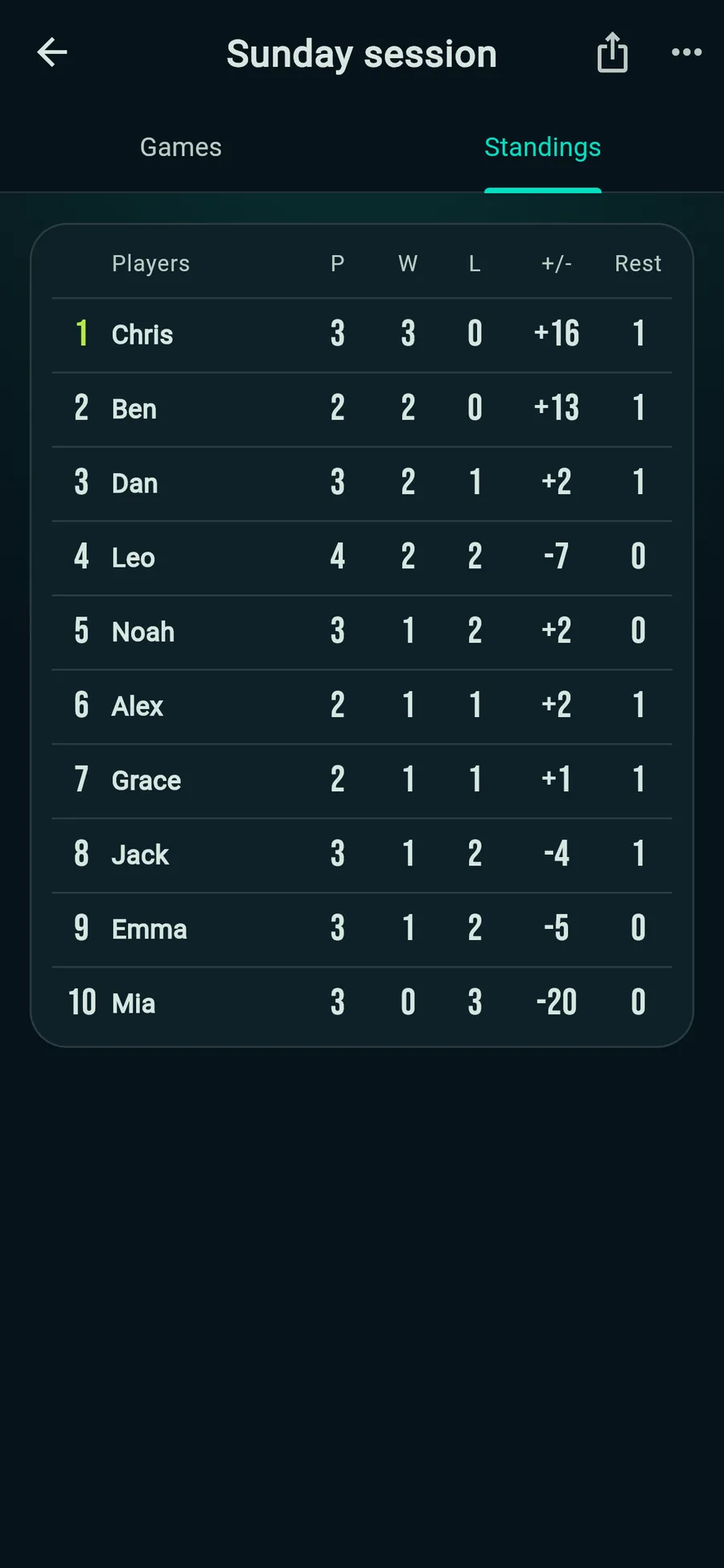
StandingsWorked out from the scores
Rotations are saved on the device you use. Scores of games kept on the scoreboard go straight into the table.
An avatar for every player
Put an avatar, such as an animal, next to each player's name; in replays, that avatar moves on the court. The avatar is remembered with the player's name, so it is there for the next match too.
- 9 avatars
Fox, Shiba, rabbit, panda, cat, bear, owl, penguin and a pickleball.
Use it in 7 languages
The app opens in your device's language the first time, and you can switch any time under “Language” in Settings (the gear on My Page). Replay commentary speaks each language too. This page also switches from the languages below or the globe at the top right.
FAQ
Is it free?
Yes. Every feature is free, and there are no ads.
Is there an iPhone or Android app?
Yes. Download it on the App Store or Google Play. There is also a web version for the browser (pickleballbu.com).
Where are my records saved?
If you're not signed in, matches are saved in the browser on your device, so clearing the browser's data deletes them too. Sign in with Google or Apple and they're also saved to the cloud, where you can see them on your other devices.
Does the helper need the app or an account?
No. Scanning the scorer's QR code opens it in the browser, ready to record as the helper. Both the scorer and the helper need to be online.
What if the app closes during two-phone scoring?
The rallies recorded so far are kept. The scorer taps “Invite a helper” again, and the helper scans the new QR code.
How do I change the language?
In the app, under “Language” in Settings (the gear on My Page); on this page, with the globe at the top right.
Where can I send feedback or report a bug?
Use Feedback & bug reports in Settings (the gear on My Page) in the app (no sign-in needed). If a place to play is missing from the court map, tell us with Request a place on the map. We read every message.
What can my members see about me?
Your name and avatar, matches where you were picked as a player, and practice plans you were invited to. Your email address is never shown.

Start using PickleballBu.com
Download the app from the App Store or Google Play and start scoring right away, no sign-in needed. There is also a web version for the browser.